
How to Use Your Estonian E-Residency Digital ID Card: Essential Guide 2026
🚨 Breaking News: Cardless e-Residency is Coming!
Estonia has officially announced a transition toward a 100% cardless, biometric mobile app system for e-residents. This revolutionary update will eliminate the need to visit an embassy to pick up a physical card and is expected to cut the application waiting time from 2 months to just 2 weeks!
Read the official announcement here. Until the new system is fully rolled out, this guide covers how to set up and use your current physical e-Residency Digital ID kit.
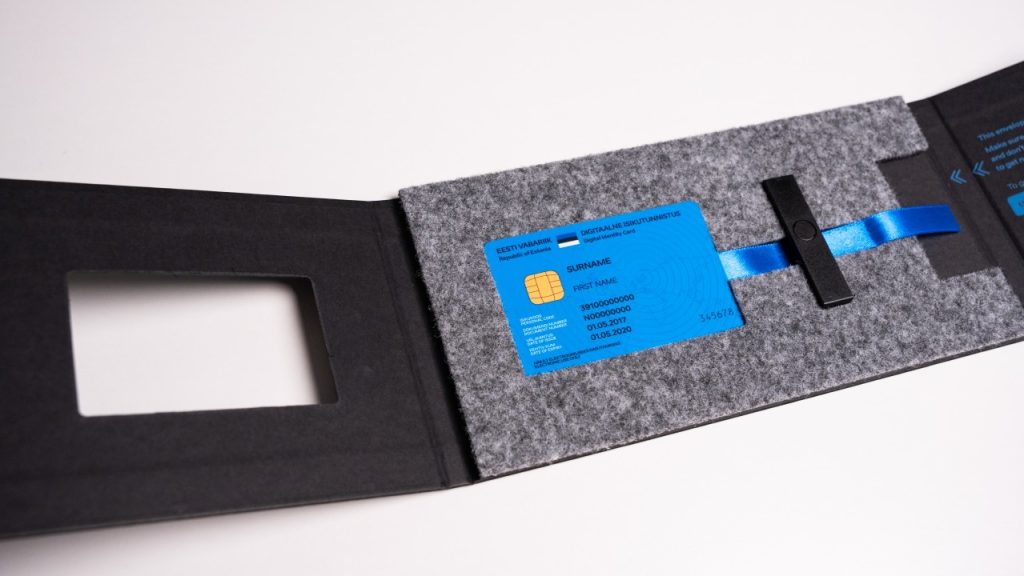
Welcome to this detailed guide on using your Estonian E-Residency Digital ID card. Whether you have just received your kit or need a refresher, this post will walk you through setting up your digital identity securely and using it for everyday online services.
Table of Contents
Introduction
What’s in the Estonian E-Residency Digital ID Kit?
Quick Answer: The e-Residency kit contains your physical Digital ID card (valid for 5 years), a USB Smart Card Reader, and a sealed envelope containing your secure PIN 1 (for login), PIN 2 (for digital signatures), and a PUK code.
- Digital ID Card: Displays your name, personal ID code (isikukood), gender, and birthdate. It is usually valid for 5 years.
- Smart Card Reader: A USB device to connect your Estonian E-Residency Digital ID card to a computer.
- PIN Codes Envelope: Contains your authentication secrets:
- PIN 1 (4 digits): For identification and secure login.
- PIN 2 (5 digits): For digital signatures that are legally binding.
- PUK Code: Used to unlock your PINs if you enter them incorrectly 3 times.
Step-by-Step: How to Use Your Estonian E-Residency Digital ID Card
Quick Answer: To use your card, download the DigiDoc4 Client software, plug the USB card reader into your computer, insert your ID card chip-side up, and use your PIN 1 to authenticate and log into Estonian e-services.
1. Set up your Estonian E-Residency Digital ID card
Start by downloading the official software (DigiDoc4 Client) from www.id.ee. Install the software, connect the card reader to your USB port, and insert your digital ID card with the chip facing up.2. Check that the Digital ID card is detected
Launch the DigiDoc4 Client. It should immediately read your Estonian E-Residency Digital ID card and display your name and ID number. You can now use PIN 1 to verify your identity and PIN 2 to confirm signatures.3. Use your Estonian E-Residency Digital ID for e-services
Most public services in Estonia are accessible online. Test your card by logging into the state portal eesti.ee. Select “Login with ID Card”, follow the browser prompts, and enter PIN 1 to see what services are available to you. If you plan to start a company in Estonia, you will later use the same Estonian E-Residency Digital ID to sign incorporation documents and manage your company in the Commercial Register. For a detailed walkthrough, see our guide on how to start a company in Estonia.Where You Can Use Your Estonian E-Residency Digital ID
Your Estonian E-Residency Digital ID unlocks a wide range of secure online services without the need to visit Estonia physically. Common use cases include:
| E-Service Category | What You Can Do |
|---|---|
| Company Management | Access the Estonian Commercial Register to create a company, file annual reports, and sign resolutions. |
| Secure Banking | Log into participating Estonian banks and international fintech institutions to manage business accounts. |
| Digital Signatures | Sign contracts, shareholder agreements, or client documents with a legally binding EU-recognized QES signature. |
| Tax Filings | Access the Tax and Customs Board (e-MTA) to submit VAT declarations and review tax obligations. |
| Government Portals | Log into eesti.ee to view personal data, company filings, and other e-services. |
Smart-ID Setup with Your Estonian E-Residency Digital ID
- Download the Smart-ID app on your smartphone.
- Use your ID card and reader to authenticate the app for the first time.
- After activation, you can log into services like the Commercial Register, eesti.ee, and banking portals using only your phone.
Security Tips for Your Estonian E-Residency Digital ID
- Browser extensions: Ensure the “Token Signing” or similar Estonian ID card extensions are enabled in your browser (Chrome, Firefox, Safari).
- Lost card: If you lose your physical card, you can still use Smart-ID (if already set up) to access services while you apply for a new card.
- Separate devices: Consider using a separate computer or user profile for business activities to reduce the risk of malware.
- Regular updates: Keep DigiDoc4, your operating system, and browsers up to date for security patches.